Steps at a glance
- Create the patient in Clients / Patients if they do not exist.
- In Ordonnances, click Nouvelle Ordonnance and choose the patient.
- Add the medicines with dosage and quantity, then Enregistrer.
- Select the prescription and click Délivrer (POS).
- Check the basket and press F12.
Prescription statuses
| Status | Meaning |
|---|---|
| En attente (pending) | Nothing has been dispensed yet |
| Partielle (partial) | Part of the quantities has been dispensed |
| Délivrée (dispensed) | All the prescribed quantities have been dispensed |
| Annulée (cancelled) | Abandoned |
The first three statuses are recalculated automatically after each sale linked to the prescription; Annulée is chosen by hand.
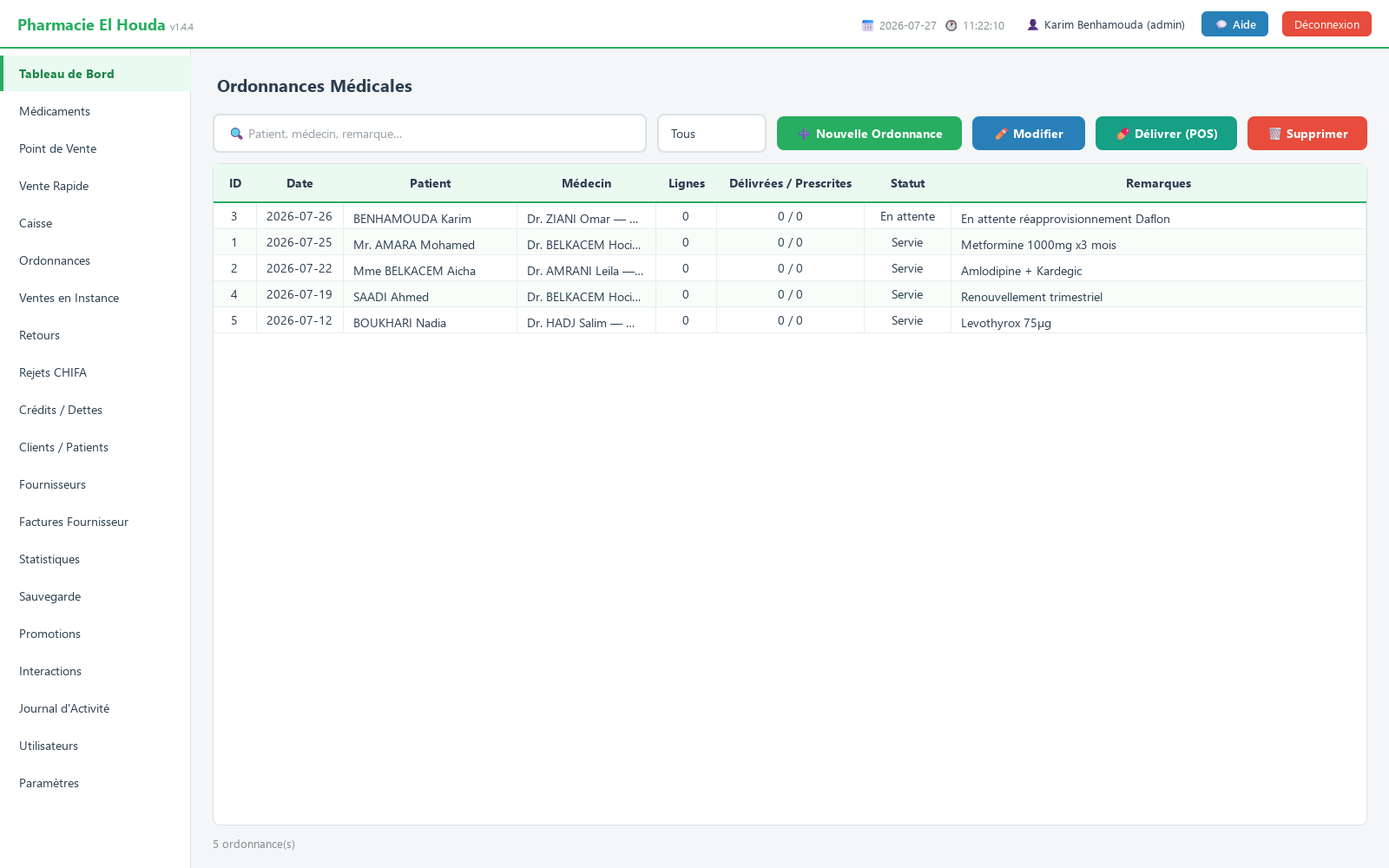
Before you start: the patient record
Every prescription is linked to a patient in Clients / Patients. If none exists, the list shows ⚠ Aucun client — créez-en d'abord (no customer — create one first). Create the patient with Clients / Patients → ➕ Ajouter Client (add customer).
Entering a new prescription
- In Ordonnances (prescriptions), click ➕ Nouvelle Ordonnance (new prescription).
- Choose the Patient :, enter the Médecin : (doctor, optional), check the Date : (today by default) and leave the Statut : (status) on En attente. Remarques : (remarks) is optional.
- In Lignes de prescription (prescription lines), type in Rechercher médicament… (search medicine) and select the product.
- Enter the Posologie : (dosage, e.g.
1 cp x 3 / jour, 7 jours) and the prescribed Qté : (quantity), then click Ajouter ligne (add line). - Repeat for each medicine. Adding the same product twice adds the quantities together on a single line.
- Click Enregistrer (save).
Dispensing at the point of sale
- Select the prescription and click 💊 Délivrer (POS) (dispense).
- The Point de Vente opens with the basket filled with the quantities not yet dispensed, within the limit of the stock. The banner 📋 Ordonnance #N — Patient : … shows the number of lines loaded.
- Out-of-stock products are listed in the Articles non chargés (items not loaded) window.
- Adjust the basket if the patient takes only part of it, choose the sale type, then press F12.
- The dispensed quantities are updated and the status changes to Partielle or Délivrée.
Editing, cancelling or deleting
- Edit: select, then ✏️ Modifier (edit), or double-click. A line that has already been partly dispensed cannot be removed (Suppression interdite, deletion not allowed).
- Cancel: set the Statut : to Annulée and save.
- Delete: 🗑️ Supprimer (delete) is only possible if nothing has been dispensed; otherwise the software asks you to cancel it.
- A Délivrée or Annulée prescription can no longer be sent to the point of sale.
Printing the prescription as a PDF
- Open a saved prescription with ✏️ Modifier (the button does not exist on an unsaved prescription).
- Click 📄 Imprimer PDF (print PDF) and choose the location.
The document carries the pharmacy header (name, address, phone from Settings), the number, the date, the status, the doctor, the patient information and the lines with dosage and quantities.
Search and filters
The 🔍 Patient, médecin, remarque… (patient, doctor, remark) field searches the patient, the doctor and the remarks; the status list filters on Tous (all) or one status. Columns: ID, Date, Patient, Médecin, Lignes, Délivrées / Prescrites, Statut (in colour), Remarques (doctor, lines, dispensed / prescribed, status, remarks).
Frequently asked questions
How do I enter a prescription in PharmaPro?
Ordonnances → Nouvelle Ordonnance, choose the patient, add each medicine with dosage and quantity via Ajouter ligne, then Enregistrer.
How do I dispense part of a prescription?
Click Délivrer (POS), remove or reduce in the basket what is not being dispensed now, then press F12. The prescription changes to Partielle; the rest is dispensed later the same way.
Why can't I delete a prescription?
Because part of it has already been dispensed. Set its status to Annulée.
Can a prescription be printed?
Yes: open a saved prescription with Modifier and click Imprimer PDF.
Try PharmaPro in your pharmacy
15 days free with every feature, then 45 000 DZD once.
Download and try freeBuy the licence