Steps at a glance
- Open the Point de Vente and press F2.
- Scan or type the name, then press Enter for each product.
- Adjust the quantities with + and − if needed.
- Choose the TYPE DE VENTE and check Montant paye.
- Press F12 to record the sale and print the receipt.
Screen layout
- On the left: the Scannez le code-barres ou saisissez le nom du produit... [F2] (scan the barcode or type the product name) field, an alert banner that disappears on its own, the product list (name | stock | price), the Quantité : (quantity) field and the Ajouter au Panier [Entrée] (add to basket) button.
- On the right: the basket (Produit, Qte, P.U. (DA), Sous-total (DA): product, quantity, unit price, subtotal), the TOTAL, the TYPE DE VENTE : (sale type) list, the Montant paye (DA) : (amount paid) field and the buttons Encaisser [F12] (check out), ⚠ Crédit [Ctrl+D] (credit), ⏳ Instance [Ctrl+I] (pending), ✕ Vider [Échap] (clear).
If the loyalty programme is enabled in Settings, a 👤 Client (fidélité) : (loyalty customer) box appears for choosing the customer and using their points.
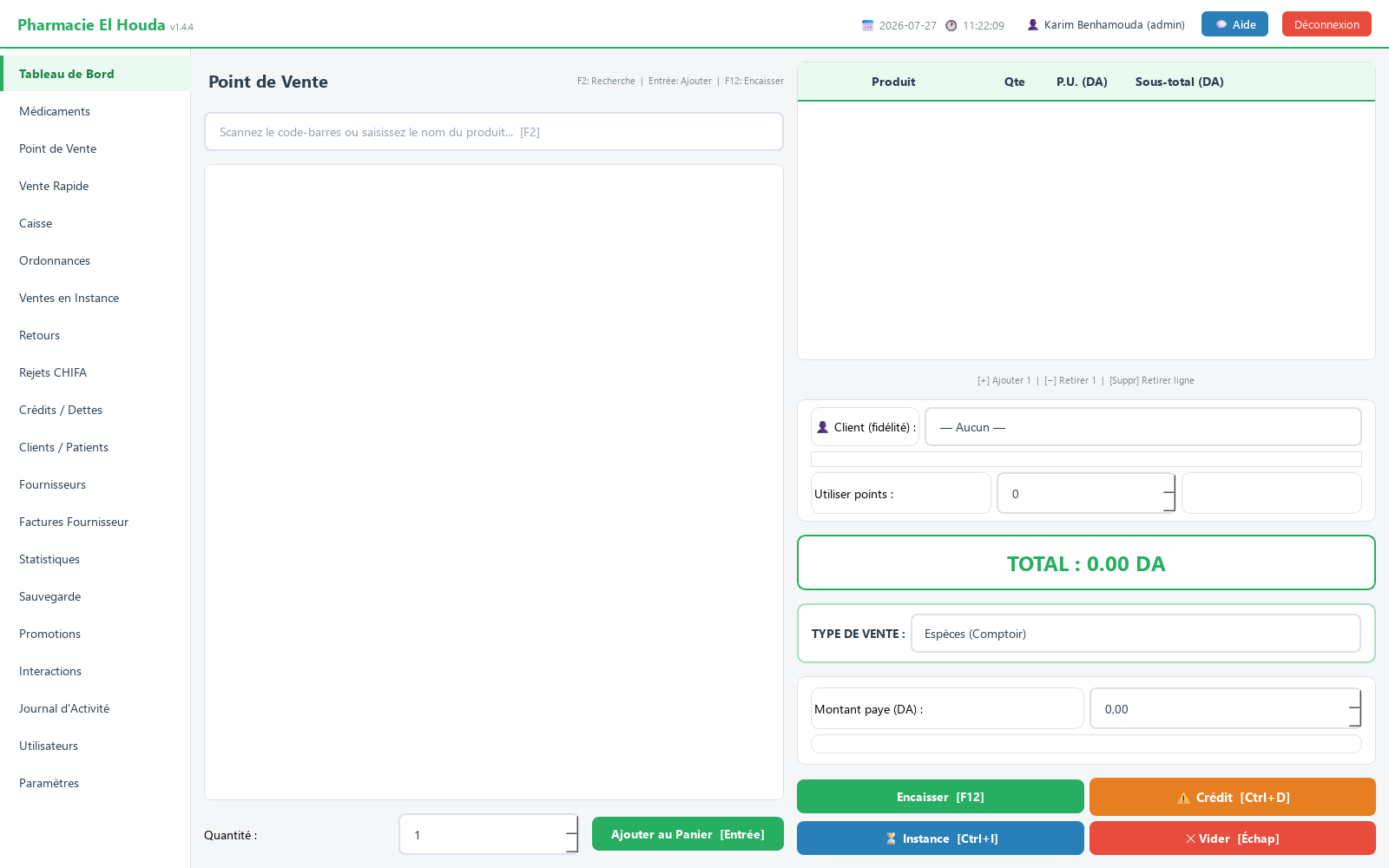
Recording a sale step by step
- Press F2, then scan the barcode or type part of the name.
- With the scanner: if the code matches a product in stock, it is added directly (1 unit). With the keyboard: select the product, adjust Quantité : if needed, then press Enter or double-click.
- Repeat for each product. In the basket: + and − change the selected line, Del or the X button removes it.
- Choose the TYPE DE VENTE : (default Espèces (Comptoir), cash at the counter).
- Check Montant paye (DA) :, pre-filled with the total.
- Press F12 or Encaisser [F12]. The Vente validée (sale confirmed) window shows the receipt number, the total, the amount paid and any Monnaie a rendre (change to give); the receipt prints.
Sale types and third-party payers
| Type in the list | Extra field |
|---|---|
| Espèces (Comptoir) | None — cash sale |
| Carte Chifa (CNAS) | Montant Carte Chifa (DA) : |
| CASNOS | Montant CASNOS (DA) : |
| Mutuelle complémentaire (supplementary mutual insurance) | Montant Mutuelle (DA) : |
| Caisse militaire (military fund) | Montant Caisse militaire (DA) : |
| Mixte (cash + tiers) (mixed: cash + third party) | Montant pris en charge (DA) : (amount covered) |
For a sale with a third-party payer: enter the third party's share in the extra field, then reduce Montant paye (DA) to the patient's share only (total − third-party share). If the total stays in Montant paye, the software calculates false change to give and counts the whole amount as cash in the register.
Chifa and pending sales: see CHIFA / CNAS.
Automatic checks
- Stock: you cannot add more than the stock (Stock insuffisant pour « … » — disponible : …, insufficient stock). Before saving, every line is checked again; if even one is short, nothing is recorded or deducted.
- Drug interactions: if the product being added interacts with a product in the basket (list on the Interactions page), the Interaction médicamenteuse (drug interaction) window shows the severity and the description. No cancels the addition; Yes adds it and records the decision in the activity log.
- Promotions: an active promotion (percentage or amount) automatically reduces the unit price in the basket.
- Loyalty (if enabled): choose the customer and enter the points in Utiliser points : (use points); their value is deducted from the total, and new points are earned on checked-out sales.
Printing and reprinting the receipt
- After each checkout, the receipt goes to the Windows printer, then an ESC/POS thermal printer is tried. With no printer, it is saved as a text file in
data\receiptsand the confirmation message says so. - A text copy is always kept. The receipt includes the pharmacy information and the tax information from Settings.
- A printing failure does not cancel the sale: it is recorded and the stock deducted.
- Reprinting (administrator): Statistiques → Détail des ventes (période) (sales detail for the period) → select the sale → 🖨️ Réimprimer le ticket sélectionné (reprint the selected receipt).
Quick sale (Vente Rapide)
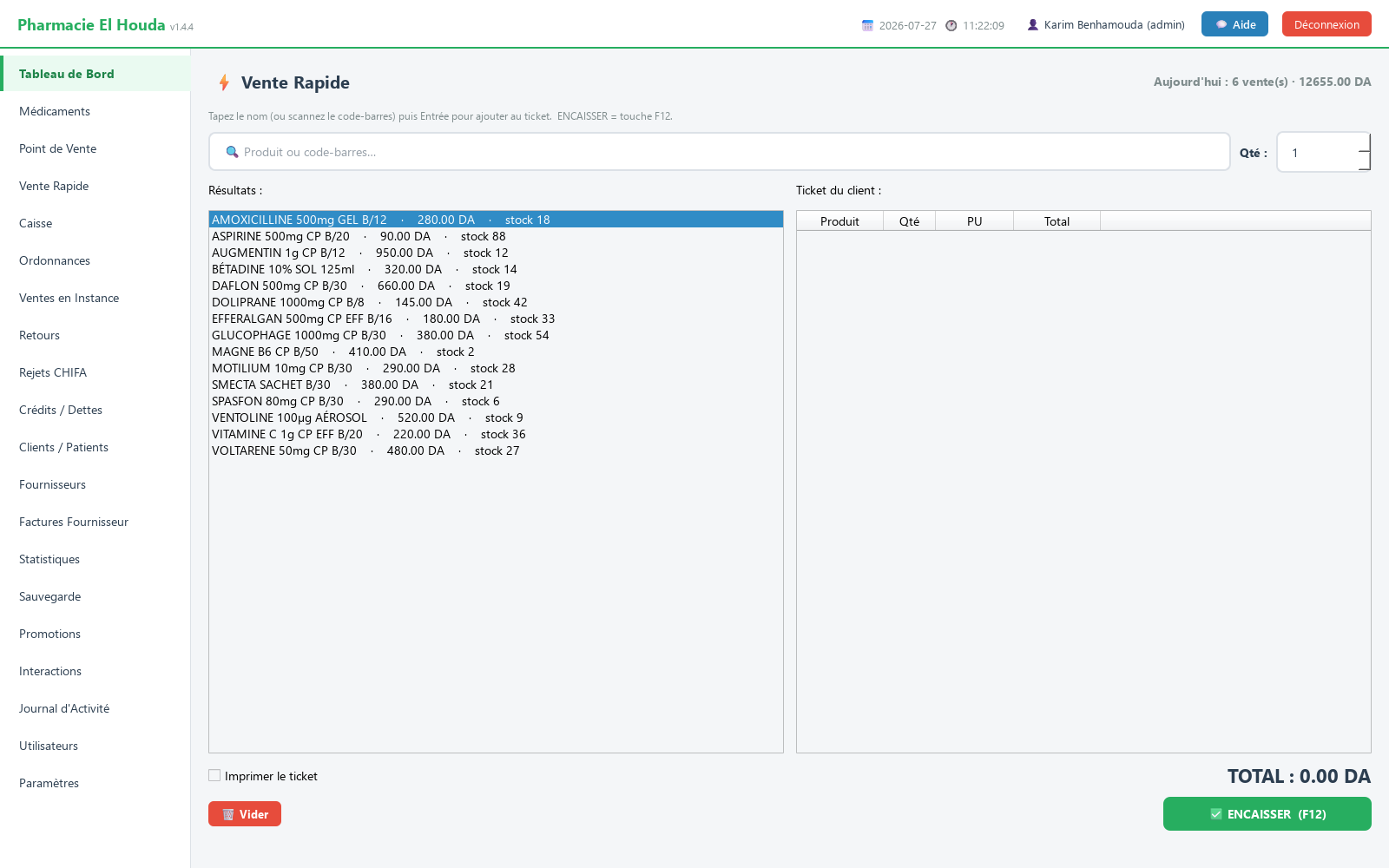
A lighter screen for cash sales only (counter type, cash method), without Chifa, prescription or loyalty. Its purpose: to have every small sale entered rather than noted on paper, so that stock and statistics stay accurate.
- Type the name or scan into 🔍 Produit ou code-barres… (product or barcode). Out-of-stock products appear greyed out and cannot be added.
- Adjust Qté : (quantity) if needed, then press Enter to add the first result to the Ticket du client : (customer receipt).
- Tick Imprimer le ticket (print receipt) if you want a receipt (unticked by default).
- Press F12 or ✅ ENCAISSER (F12). The message ✅ Vente #… enregistrée (sale recorded) appears and the Aujourd'hui : … vente(s) (today: … sales) counter updates.
Common messages
| Message | What to do |
|---|---|
| Stock insuffisant … Aucune vente enregistrée. | Reduce the quantity or check the stock in Médicaments. |
| Vente non enregistrée : le stock a changé entre-temps. | Another sale used up the stock in the meantime; try again, nothing has been changed. |
| Panier vide — ajoutez des produits. | Add a product before checking out. |
| Montant insuffisant — total : … DA | Correct the amount paid or use ⚠ Crédit. |
Frequently asked questions
How do I sell by barcode in PharmaPro?
Press F2, scan, then Enter: the product is added (1 unit) if it is in stock. Once the basket is complete, press F12 to check out.
How do I record a Chifa sale at the counter?
Choose Carte Chifa (CNAS) in TYPE DE VENTE, enter the Chifa share in Montant Carte Chifa, put the patient's share in Montant paye, then press F12.
Can a receipt be reprinted?
Yes, for the administrator: Statistiques → Détail des ventes, select the sale, then Réimprimer le ticket sélectionné.
What is the difference between Point de Vente and Vente Rapide?
Vente Rapide is for cash sales only, without Chifa, prescription or credit, and is not attached to the cash-register shift. Point de Vente covers every sale type.
Can I give a manual discount?
No, there is no manual discount field. Discounts are defined on the Promotions page and applied automatically, or given through loyalty points.
Try PharmaPro in your pharmacy
15 days free with every feature, then 45 000 DZD once.
Download and try freeBuy the licence