Steps at a glance
- At the Point de Vente, load the patient's prescription with Délivrer (POS).
- Press Ctrl+I and confirm the pending sale.
- When the patient comes back, open Ventes en Instance and select the sale.
- Click Régler (carte présentée) and choose Carte Chiffa.
- Enter the amounts, then click Régler.
What PharmaPro does, and what it does not do
- For every sale with a third-party payer, it records the third party's share and the patient's share, which feed into the statistics and the cash register.
- It exports a period's Chifa sales as CSV to prepare and check the bordereau (claims batch).
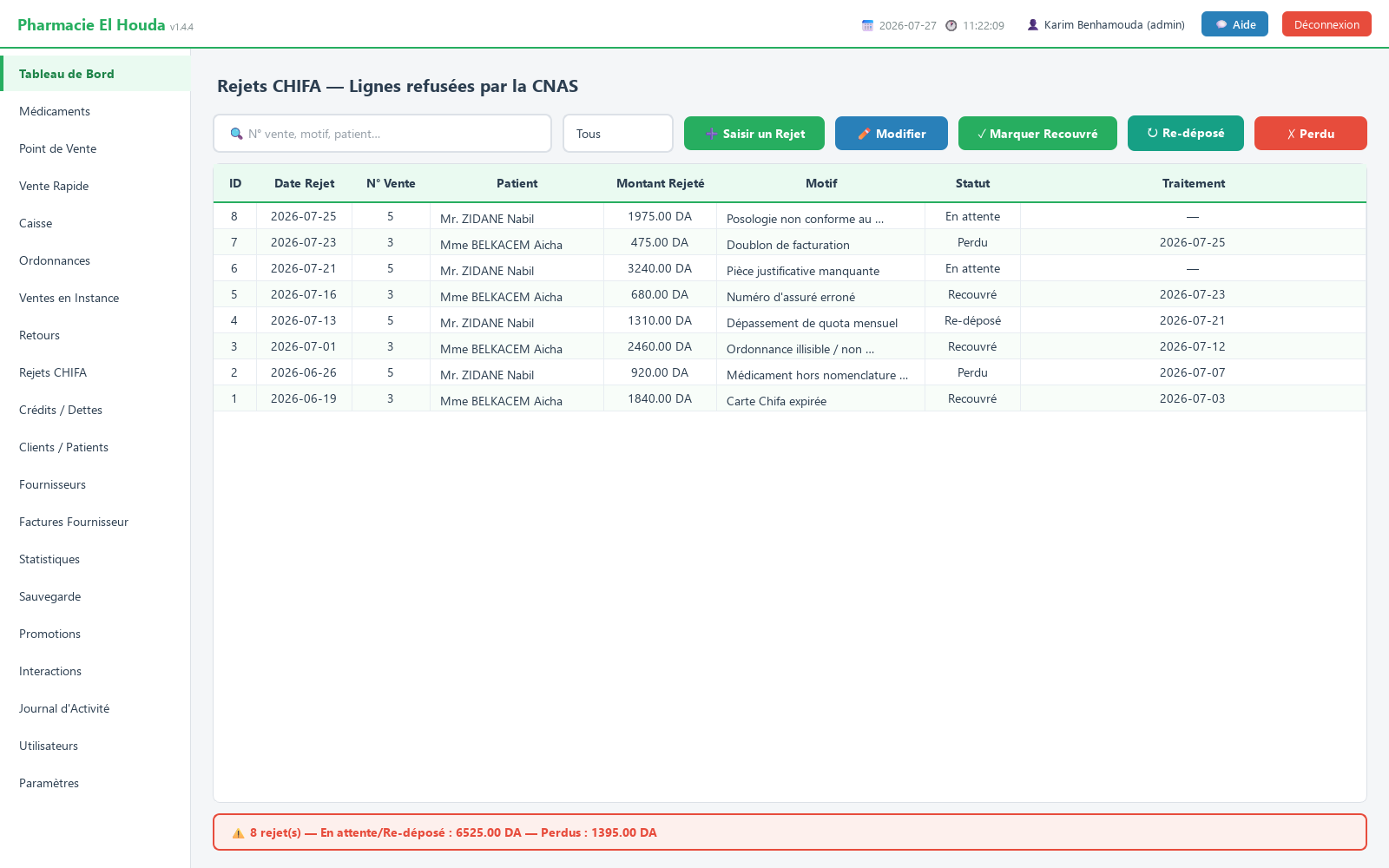
- It tracks the rejections reported by the CNAS.
- It sends nothing to the CNAS and does not replace CHIFA OFFICINE: reading the card and official billing stay in the Chifa software.
Chifa sale at the counter
- At the Point de Vente (point of sale), fill the basket (or load the prescription with 💊 Délivrer (POS)).
- In TYPE DE VENTE : (sale type), choose Carte Chifa (CNAS). For CASNOS, mutual insurance or the military fund, choose the matching type; for a mix of cash + third party, Mixte (cash + tiers).
- Enter the Chifa share in Montant Carte Chifa (DA) : (Chifa card amount).
- Reduce Montant paye (DA) : (amount paid) to the patient's share (total − Chifa share), or
0if everything is covered. - Press F12. The confirmation shows the Carte Chiffa line with the amount covered.
Importing the last sale from CHIFA OFFICINE: with the Carte Chifa (CNAS) type, a ⬇️ جلب آخر بيع من CHIFA (fetch the last sale from CHIFA) button appears. It reads the last invoice entered in CHIFA OFFICINE on this computer and adds its medicines to the basket by barcode (read-only, nothing is written to CHIFA). It only works if CHIFA OFFICINE is running and access has been configured; otherwise the message CHIFA injoignable (CHIFA unreachable) appears. Products not found or out of stock are listed in the message.
Pending sale: patient without a card
When the patient needs their medicines but does not have their Chifa card, you can dispense now and settle later:
- The basket must be linked to a patient: load their prescription from Ordonnances with 💊 Délivrer (POS), or choose them in the 👤 Client (fidélité) : box (visible only if loyalty is enabled). Otherwise the message Patient requis (patient required) appears.
- Click ⏳ Instance [Ctrl+I] or press Ctrl+I, then confirm.
- The stock is deducted immediately, with no payment taken. The message Vente en instance #N créée. (pending sale #N created) shows the amount to settle.
When the patient comes back with their card, on the Ventes en Instance (pending sales) page:
- Search for them in 🔍 Patient, ID vente… (patient, sale ID) and select the sale.
- Click ✓ Régler (carte présentée) (settle, card presented).
- Choose the Mode de règlement : (payment method) — Carte Chiffa, Mixte (Chiffa + Espèces) or Espèces (cash) — and enter Montant Carte Chifa (DA) : and Montant Espèces (DA) : (cash amount). Their sum must cover the total.
- Click Régler (settle): the sale becomes confirmed and enters the statistics and the bordereau.
If the patient does not come back: ↺ Annuler (rendre stock) (cancel, return stock) cancels the sale and puts the quantities back in stock. The footer summarises ⏳ N vente(s) en instance — Total à régler (N pending sales — total to settle).
Exporting the CHIFA bordereau
From the Statistiques (statistics) page (administrator):
- Choose the period with 📅 Du: (from) and Au: (to).
- Click 📤 Bordereau CHIFA (CSV) (one row per sale) or 📤 Détail Lignes CHIFA (one row per product sold).
- The Export terminé (export finished) message gives the file path, the number of sales and the total Chifa share.
| File | Columns |
|---|---|
| Bordereau (summary) | N° Vente, Date, Heure, Patient, Téléphone, N° Ordonnance, Médecin, Type, Mode Paiement, Total (DA), Espèces (DA), Carte Chifa (DA), then a TOTAL row |
| Line detail | N° Vente, Date, Patient, Produit, Qté, P.U. (DA), Sous-total (DA), Total Vente (DA), Part Chifa (DA) |
- Confirmed sales of the Chifa, CASNOS, Mutuelle, Militaire and Mixte types are included. Unsettled pending sales are not.
- CSV separated by
;, with a decimal comma, readable directly in Excel, saved indata\exportsunder the namebordereau_chifa_summary_…orbordereau_chifa_detail_….
Tracking CHIFA rejections
When the CNAS reports the rejection of a sale or part of one, enter it in Rejets CHIFA (CHIFA rejections):
- Click ➕ Saisir un Rejet (enter a rejection).
- Search for the sale in ID vente, patient, date AAAA-MM-JJ… (sale ID, patient, date YYYY-MM-DD). Only confirmed sales with a third-party payer are listed (the last 60, or the search results). Select it: Montant rejeté (DA) : (rejected amount) is pre-filled with the third party's share.
- Correct the amount and choose the Motif : (reason): Code patient invalide, Médicament hors nomenclature, Dépassement de plafond, Signature manquante, Doublon, Période non couverte, Pièce justificative manquante, Autre (invalid patient code, medicine not on the list, ceiling exceeded, missing signature, duplicate, period not covered, missing supporting document, other) — or type a free-text reason.
- Check Date du rejet : (rejection date) and Statut : (status, usually En attente), add Remarques : (remarks), then Enregistrer (save).
| Status | Meaning |
|---|---|
| En attente (pending) | Entered, not yet handled |
| Re-déposé (resubmitted) | Corrected and sent again in the next bordereau |
| Recouvré (recovered) | Amount recovered |
| Perdu (lost) | Definitive loss |
To change the status quickly, select the row, then ✓ Marquer Recouvré, ↻ Re-déposé or ✗ Perdu; the handling date is recorded. The footer totals the En attente/Re-déposé amounts and the Perdu amounts. The dashboard shows the orange box ⚠ REJETS CHIFA EN ATTENTE (pending CHIFA rejections) as long as rejections are open.
Common mistakes
- Sale not found when entering a rejection: it was recorded as Espèces (Comptoir) (cash at the counter) instead of Carte Chifa (CNAS), so it does not appear among sales with a third-party payer.
- Patient requis on Ctrl+I: the basket is not linked to any patient; load their prescription, or enable loyalty and choose them.
- Incomplete bordereau: pending sales only appear in it once settled; go through Ventes en Instance before exporting.
Frequently asked questions
How do I record a Chifa sale in PharmaPro?
At the Point de Vente, choose Carte Chifa (CNAS), enter the Chifa share in Montant Carte Chifa and the patient's share in Montant paye, then press F12.
The patient forgot their Chifa card — what do I do?
Link the basket to the patient (by loading their prescription) and press Ctrl+I for a pending sale. When they come back, settle it in Ventes en Instance with the Régler button.
How do I export the CHIFA bordereau?
In Statistiques (administrator), choose the period and click Bordereau CHIFA (CSV) or Détail Lignes CHIFA. The file is saved in data\exports and opens in Excel.
Does PharmaPro send the bordereau to the CNAS?
No. It produces a checking file; official billing and card reading stay in CHIFA OFFICINE.
How do I track CNAS rejections?
In Rejets CHIFA, click Saisir un Rejet, choose the sale, the amount and the reason, then set the status to Re-déposé, Recouvré or Perdu depending on the outcome.
Try PharmaPro in your pharmacy
15 days free with every feature, then 45 000 DZD once.
Download and try freeBuy the licence