Steps at a glance
- Log in with an admin account and open Statistiques.
- Choose a quick period or set Du / Au.
- Read the four cards and their comparison with the previous period.
- Check Médicaments sortis (vendus) and the stock status.
- Export the CHIFA claim file or click 📄 Générer Rapport Complet if needed.
Who can open the statistics?
The Statistiques page is restricted to the admin role: it does not appear in a worker's menu.
For an extra lock, set a password in Paramètres → 🔒 Sécurité — Statistiques → 🔑 Mot de passe des statistiques : and save. It is then asked for at every opening (« Statistiques protégées » window), even from an admin account. Leave it empty to disable it.
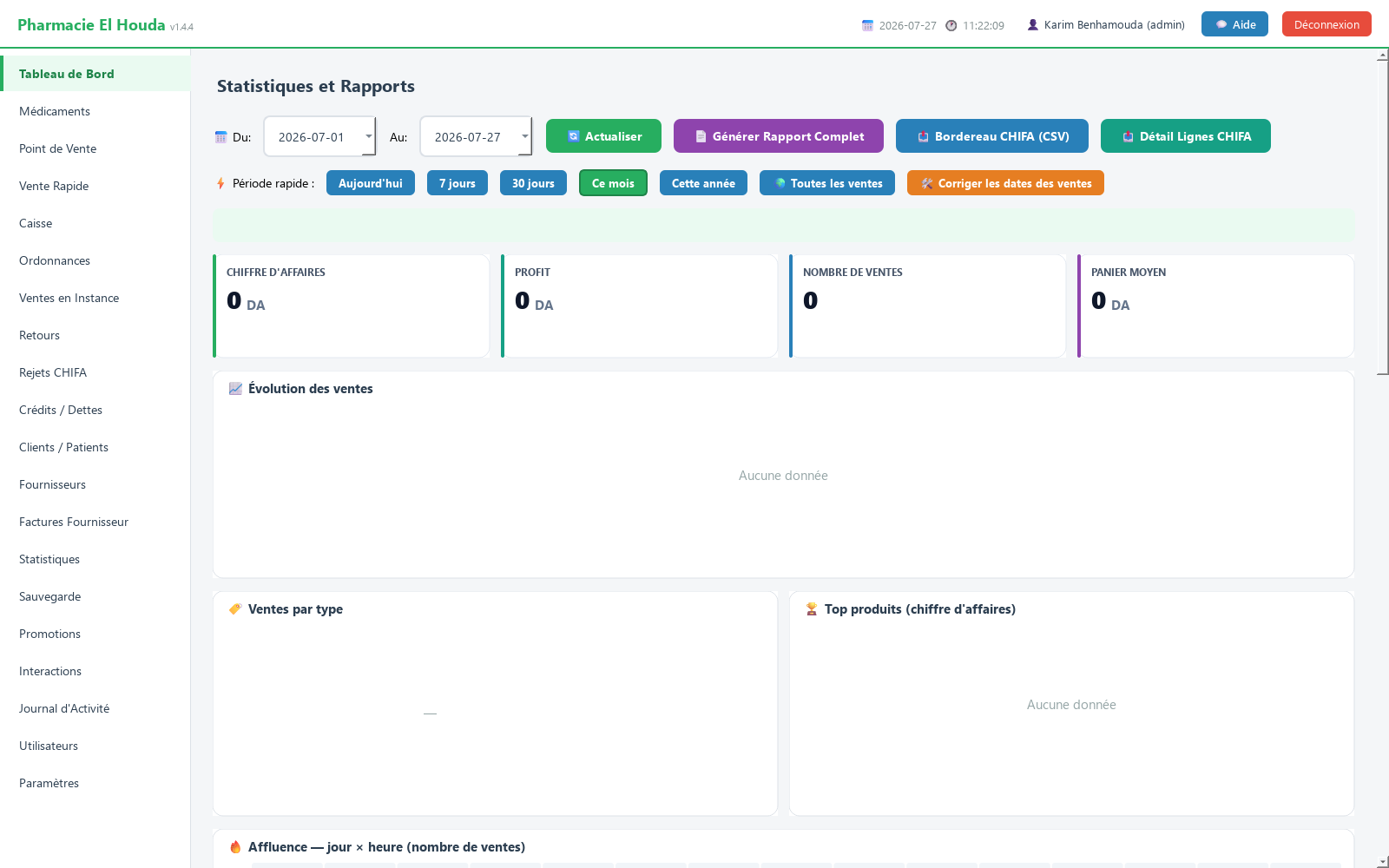
Choose the period
- Change 📅 Du: and Au: (from / to): the figures update immediately.
- Or use ⚡ Période rapide : (quick period): Aujourd'hui, 7 jours, 30 jours, Ce mois (default), Cette année, 🌍 Toutes les ventes (all sales).
🌍 Toutes les ventes ignores dates entirely and shows the whole history, including wrongly dated sales. A banner always shows the period displayed, the number of sales and the turnover.
Cards and charts
- Four cards: Chiffre d'affaires (turnover), Profit, Nombre de ventes (number of sales), Panier moyen (average basket), each compared with the previous period of the same length.
- 📈 Évolution des ventes: bars per day or per month depending on the length.
- 🏷️ Ventes par type: breakdown by sale type (counter, Chifa…).
- 🏆 Top produits (chiffre d'affaires): the top 8 products in DZD.
- 🔥 Affluence — jour × heure (nombre de ventes): the busiest days and hours, useful for organising duty shifts.
Detailed tables
- 💊 Médicaments sortis (vendus) (medicines sold): each product sold over the period with Quantité, Montant (DA), Profit (DA).
- 📦 État du stock — vos médicaments / produits (stock status): the current stock (independent of the period): products and units, purchase and selling value, potential margin, number of products with low stock, out of stock and expiring within 90 days, with a table by category.
- 📅 Ventes par Utilisateur: number of sales, total and profit per user.
- 🧾 Détail des ventes (période): the last 200 sales of the period, one row per sale.
To reprint a receipt (for example, the printer was unplugged at the time of the sale): select the sale, then 🖨️ Réimprimer le ticket sélectionné, or double-click it. No data is changed.
At the bottom, a summary: number of sales, turnover, total profit and average margin.
Full report and CHIFA claim files
- 📄 Générer Rapport Complet: summary of the period — sales, stock, number of clients, outstanding debts.
- 📤 Bordereau CHIFA (CSV): one row per Chifa sale in the period.
- 📤 Détail Lignes CHIFA: one row per product sold under Chifa.
The files are saved in the exports folder of the data folder, and PharmaPro offers to open that folder. The start date must be before the end date. Details: CHIFA page.
"My sales have disappeared": correcting dates
The most common cause: the computer's date is wrong, sales are saved under another day and today's statistics show 0. At startup, PharmaPro compares the PC clock with the server's; beyond a 12-hour difference, the « ⚠️ Date de l'ordinateur incorrecte » message is shown and the clock in the top bar turns red.
- Correct the Windows date (automatic time setting), then restart PharmaPro.
- In Statistiques, click 🌍 Toutes les ventes.
- Click 🛠️ Corriger les dates des ventes (correct sale dates), select the sale, choose 📅 Nouvelle date :, then ✅ Appliquer à la vente sélectionnée. Only the day changes; the correction is logged.
Frequently asked questions
How do I see the pharmacy's turnover and profit for a month?
Open Statistiques (admin account), choose "Ce mois" or set Du / Au: the Chiffre d'affaires and Profit cards are shown with the comparison to the previous period.
Why can't a sales assistant see the statistics?
The page is restricted to the admin role. The admin can also protect it with a password in Paramètres → Sécurité — Statistiques.
Today's statistics show 0 even though I made sales. Why?
Most often the PC date is wrong. Correct the Windows date, then use 🌍 Toutes les ventes and 🛠️ Corriger les dates des ventes.
How do I export the CHIFA claim file?
Set the period in Statistiques, then click 📤 Bordereau CHIFA (CSV) or 📤 Détail Lignes CHIFA; the file is saved in the exports folder.
Try PharmaPro in your pharmacy
15 days free with every feature, then 45 000 DZD once.
Download and try freeBuy the licence