Steps at a glance
- Open the Médicaments page and click Ajouter.
- Enter the name, quantity, selling price, purchase price and expiry date.
- Choose the category, scan the barcode and select the supplier.
- Tick Produit parapharmacie if needed.
- Click Enregistrer.
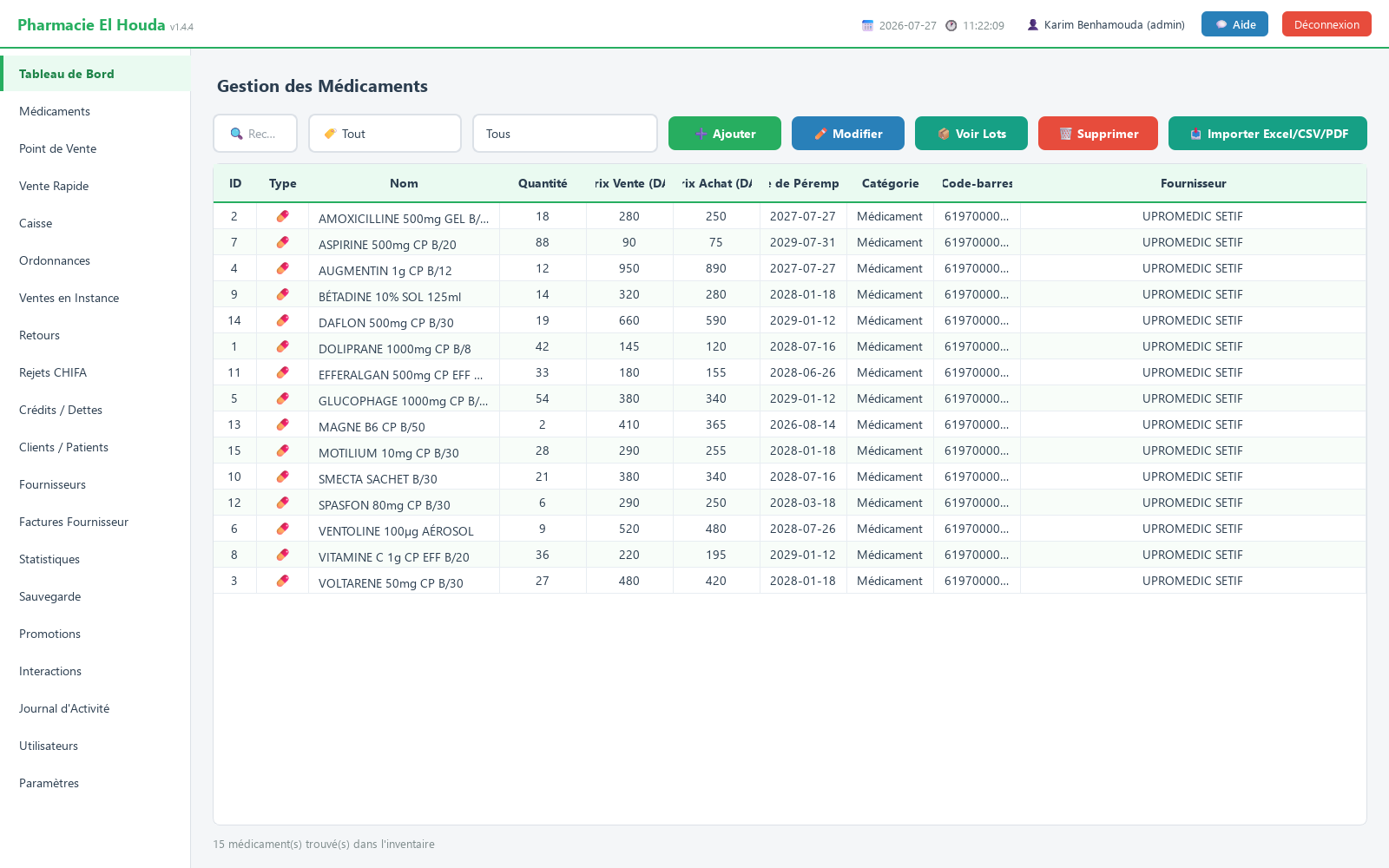
The Gestion des Médicaments screen
The toolbar contains:
- The 🔍 Rechercher par nom, catégorie... (search by name, category) field: instant search across the name, the category and the barcode.
- The type filter: 🏷️ Tout (all), 💊 Médicaments (medicines) or 🌿 Parapharmacie (parapharmacy).
- The stock filter: Tous (all), Stock faible (low stock: positive quantity below the threshold), Rupture de stock (out of stock: zero quantity), Expire bientôt (expiring soon: expiry within the alert period), then the categories: Médicament, Parapharmacie, Cosmétique, Complément alimentaire, Matériel médical, Autre (medicine, parapharmacy, cosmetic, food supplement, medical equipment, other).
- The buttons ➕ Ajouter (add), ✏️ Modifier (edit), 📦 Voir Lots (view batches), 🗑️ Supprimer (delete) and 📥 Importer Excel/CSV/PDF (import).
Columns: ID, Type (💊 or 🌿), Nom, Quantité, Prix Vente (DA), Prix Achat (DA), Date de Péremption, Catégorie, Code-barres, Fournisseur (name, quantity, selling price, purchase price, expiry date, category, barcode, supplier). Clicking a header sorts the column (ascending, then descending). The quantity is shown in red at zero and in orange below the threshold. The number of products displayed appears below the table.
Adding a medicine or product
- Click ➕ Ajouter: the Ajouter Médicament (add medicine) window opens.
- Fill in the fields (table below); those marked with an asterisk are required.
- Click 💾 Enregistrer (save).
| Field | Meaning |
|---|---|
| 📝 Nom * | The name as you will search for it at the counter (brand, strength, form). |
| 📦 Quantité * | Current stock in the selling unit (usually the box). |
| 💰 Prix Vente (DA) * | Unit selling price, used by the point of sale. |
| 💵 Prix Achat (DA) * | Unit purchase price, used to calculate profit. |
| 📅 Date de Péremption * | Used by the expiry alerts. |
| 🗓️ Date d'enregistrement | Date the stock came in (today by default); can be changed for a past delivery. |
| 📂 Catégorie | One of the six categories. |
| 🔖 Code-barres | Optional, but essential for selling with the scanner. |
| 🏭 Fournisseur | A supplier from the Fournisseurs page, or — Aucun — (none). |
| 🌿 Type | The Produit parapharmacie (avec TVA) (parapharmacy product, with VAT) box. |
Editing or deleting a product
- Edit: select the row, then ✏️ Modifier, or double-click it; save with 💾 Enregistrer.
- Delete: select the row, 🗑️ Supprimer, then confirm. Deletion is permanent.
Importing an Excel, CSV or PDF catalogue
The 📥 Importer Excel/CSV/PDF button opens the Importer Médicaments / Parapharmacie (Excel / CSV / PDF) window:
- Click 📁 Choisir un fichier (choose a file) and select a
.xlsx,.csvor.pdf(the supplier's price list or delivery note). - Check the Colonnes détectées (corrigez si besoin) : (detected columns, correct if needed) table. The required fields are marked ⭐: Désignation (nom du produit) (product name), Quantité reçue (quantity received), Prix d'achat HT (unitaire) (unit purchase price excl. tax). Correct them if needed, then click 🔄 Recharger l'aperçu avec ces colonnes (reload the preview with these columns).
- In the preview, every cell can be edited (name, quantity, purchase price, Prix VENTE (DA) (selling price), expiry); untick the rows you do not want to import.
- With no selling price in the file: enter a Marge (margin, 30% by default) and click Appliquer (prix achat + marge) (apply purchase price + margin), then optionally round with Arrondir à 5 DA (round to 5 DA), 10 or 50 and the Arrondir (round) button.
- Check the options Marquer tous les nouveaux produits comme 🌿 Parapharmacie (mark all new products as parapharmacy) and Mettre à jour les produits existants (ajoute au stock + rafraîchit prix) (update existing products: adds to stock and refreshes prices).
- Click 📥 Importer maintenant (import now). The Import terminé (import finished) window gives the counts of new, updated, skipped and failed products.
- An existing product is recognised by its exact name (case ignored): the imported quantity is added to its stock and its prices are replaced.
- A product with no selling price will be sold at its purchase price; the Prix de vente manquant (missing selling price) window warns you.
- A new product with no expiry date gets
2099-12-31and does not appear in the alerts. - A scanned PDF (image) is refused: ask the supplier for an Excel file or a “text” PDF.
Prices, stock threshold and alerts
- The counter selling price is the Prix Vente (DA). If an active promotion exists for the product (Promotions page, administrator), the price is reduced automatically when it is added to the basket.
- The profit on a sale = (selling price − purchase price) × quantity.
- The low-stock threshold and the expiry alert period are set in Paramètres → Alertes et Seuils (10 and 30 days by default) and apply to all products.
- A product with zero quantity does not appear in the Point de Vente search.
Tips and common mistakes
- Always write names the same way (e.g.
DOLIPRANE 1000MG CP B/8): the import matches products by exact name, so a name written two ways creates two products. - Fill in the barcode of fast-moving products: at the counter you then just scan and press Enter.
- Use the Rupture de stock filter before ordering, and Expire bientôt every week.
- Do not delete a product sold in the past because it has run out: leave it at zero.
Frequently asked questions
How do I import my medicine list from Excel?
Médicaments page → Importer Excel/CSV/PDF, choose the file, check the required columns (name, quantity, purchase price), then click Importer maintenant.
Why are all my imported medicines in parapharmacy?
The option Marquer tous les nouveaux produits comme Parapharmacie is ticked by default in the import window; untick it for a medicines file.
Does the import create duplicates?
Not if the name is identical: the quantity is added to the existing product and its prices are updated, provided the Mettre à jour les produits existants option is ticked.
Where do I set the low-stock threshold?
Paramètres → Alertes et Seuils → Seuil stock faible (10 by default), applied to all products.
Why doesn't a product appear at the point of sale?
The point of sale only shows products whose quantity is above zero. Check its stock in Médicaments.
Try PharmaPro in your pharmacy
15 days free with every feature, then 45 000 DZD once.
Download and try freeBuy the licence