Steps at a glance
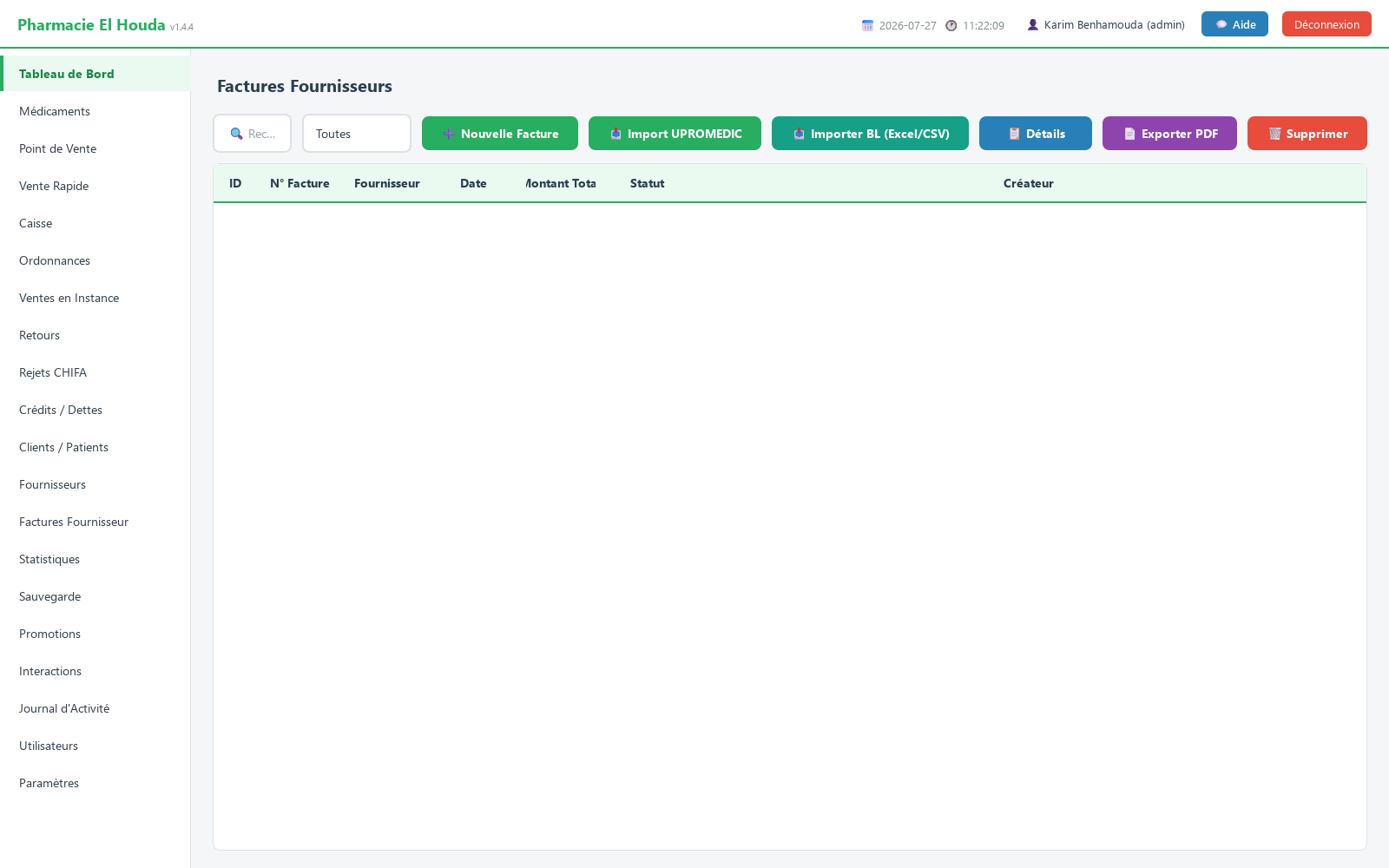
- Open Factures Fournisseur and click 📥 Importer BL (Excel/CSV).
- Click Parcourir... and choose the supplier's file (.xlsx, .xlsm or .csv).
- Map the required columns: product name, quantity received, purchase price excl. VAT, then click Suivant.
- Choose the supplier and enter the BL number, the date and the status.
- Check the preview and the Avertissements column.
- Click Importer and confirm; a backup is created automatically before the import.
The supplier record
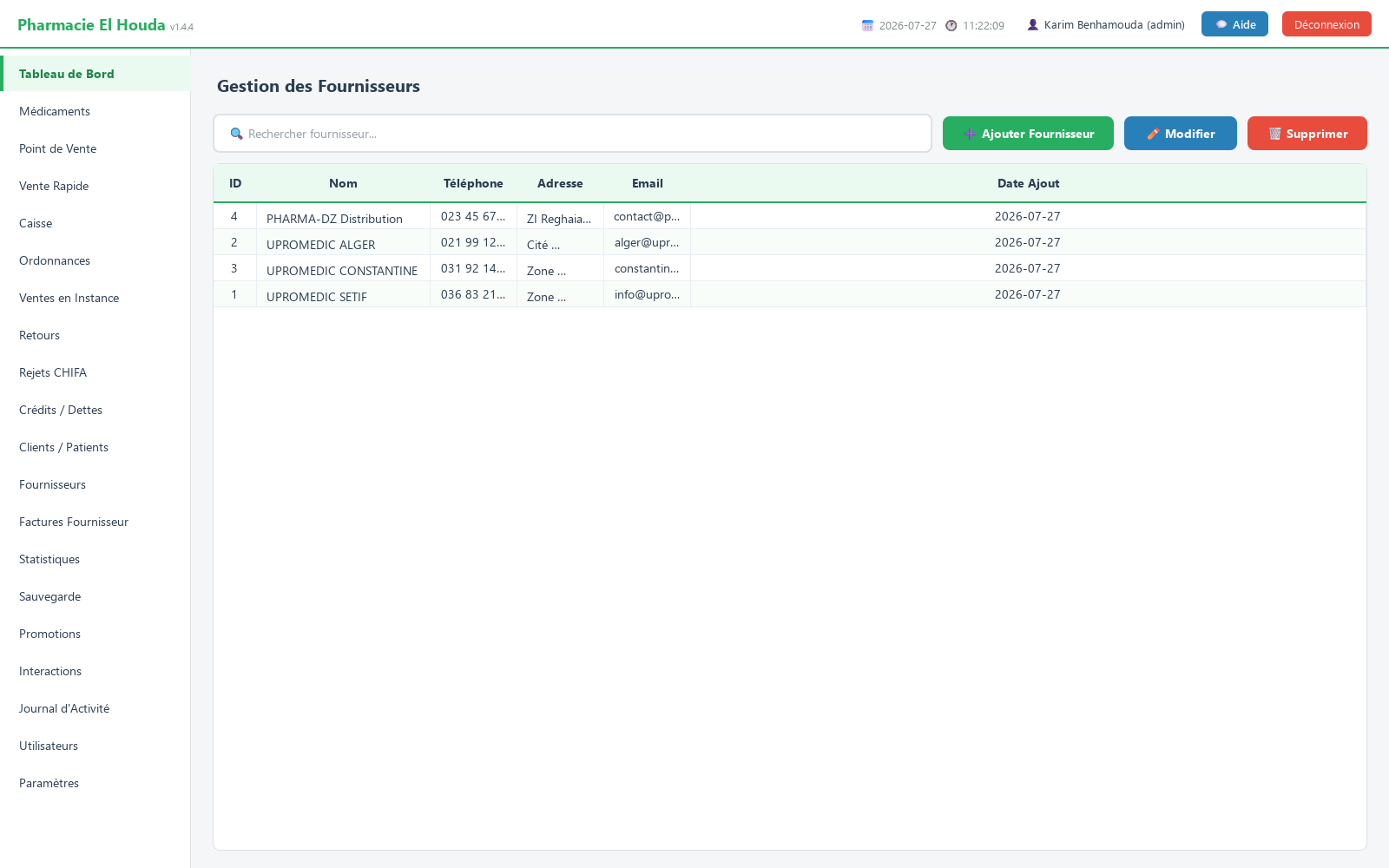
Open Fournisseurs (suppliers; page « Gestion des Fournisseurs »). Columns: ID, Nom, Téléphone, Adresse, Email, Date Ajout.
- Click ➕ Ajouter Fournisseur (add supplier).
- Enter 🏭 Nom * (required), then if needed Téléphone, 📍 Adresse, 📧 Email.
- 💾 Enregistrer (save).
Edit with ✏️ Modifier or a double-click, delete with 🗑️ Supprimer. The search covers the name or the phone number.
Enter a supplier invoice
- Open Factures Fournisseur (supplier invoices), then ➕ Nouvelle Facture (new invoice).
- Choose 🏭 Fournisseur * (it must already exist).
- 📄 N° Facture is suggested according to the numbering set in Paramètres; you can enter the supplier's number. An existing number is refused: « Ce numéro de facture existe déjà. »
- Fill in 📅 Date, 📌 Statut (En attente / Payée — pending / paid) and 📝 Remarques.
- Add the lines: scan into 🔖 Scan code-barres : then press Enter (search by barcode, then by partial name), or ➕ Ajouter Ligne and choose the medicine.
- For each line: Quantité, Prix Unit. (pre-filled with the purchase price, editable), Péremption (expiry). The 💰 Total updates.
- 💾 Enregistrer la Facture.
On saving, one batch is created per line with its expiry date and the stock increases — see Batches and FEFO. An e-Facture JSON file is also generated; its path is shown in the success message.
Search, view, export, delete
- Filter by status: Toutes, En attente, Payée, Annulée (all, pending, paid, cancelled); search by invoice number.
- 📋 Détails (or a double-click) shows the lines.
- 📄 Exporter PDF generates a printable A4 invoice.
- 🗑️ Supprimer erases the invoice and its lines.
The 📷 Scanner Facture (OCR) button is optional: it only works if Tesseract OCR is installed separately on the computer; otherwise it shows the installation instructions. Lines read from the image are approximate: check them before saving.
Import an Excel or CSV BL (4 steps)
In Factures Fournisseur, click 📥 Importer BL (Excel/CSV). It works with any supplier that sends an .xlsx, .xlsm or .csv file (the old .xls format is not accepted: re-save it as .xlsx).
- ÉTAPE 1 / 4 — Fichier (file): Parcourir... (browse), choose the file. The number of columns and rows detected is shown. Merged titles at the top of an Excel sheet are ignored; the CSV separator and encoding are detected.
- ÉTAPE 2 / 4 — Colonnes (columns): map each field to a column. Required: Désignation (nom du produit) (product name), Quantité reçue (quantity received), Prix d'achat HT (unitaire) (unit purchase price excl. VAT). Optional: Prix de vente / PPA (selling price), Date de péremption (expiry date), Catégorie, Code-barres (barcode). PharmaPro suggests the mapping from the headers; correct it if needed. Also set Catégorie par défaut : (default category) and Ignorer les N premières lignes : (skip the first N rows).
- ÉTAPE 3 / 4 — Facture (invoice): Fournisseur * (choose one or type a new name), N° Facture / BL *, Date *, Statut (Payée / En attente / Annulée), Montant total HT (total excl. VAT; leave at zero = calculated from the lines), Remarques.
- ÉTAPE 4 / 4 — Aperçu et import (preview and import): check the table (Désignation, Qté, Prix HT, PPA, Péremption, Avertissements), then Importer and confirm.
What the import does:
- A full backup of the database is created before any change; its path is given in the final message.
- Total rows (Total, TVA, Net à payer…) and rows without a name are ignored; two consecutive rows of the same product at the same price (e.g. free units) are merged.
- Existing product (same exact name, case-insensitive): the quantity is added and the purchase price is replaced; the selling price and expiry are replaced only if their column is filled in.
- Unknown product: created in Médicaments; without a readable date, the expiry 2099-12-31 is saved — correct it afterwards.
- The column mapping is remembered for this supplier and reused for the next BL.
- Re-importing the same number for the same supplier is refused (« Import refusé ») to avoid doubling the stock.
Import UPROMEDIC invoices
If your wholesaler works through UPROMEDIC and has given you pharmacy credentials, you can retrieve your electronic BLs and invoices directly (Internet connection required).
- Click 📥 Import UPROMEDIC. The first time, the Configuration UPROMEDIC window opens; afterwards, right-click the button to reopen it.
- Choose 🏢 Filiale UPROMEDIC (UPROMEDIC branch), enter 👤 Utilisateur officine (pharmacy user) and 🔑 Mot de passe (password), then 🧪 Tester la connexion (test connection) and 💾 Enregistrer.
- In Importer factures UPROMEDIC, set 📅 Depuis le: (since; last synchronisation, or 30 days the first time), then 🔄 Actualiser (refresh).
- Invoices already imported are greyed out and cannot be ticked. Use ☑ Tout cocher / ☐ Tout décocher (tick all / untick all), then 📥 Importer la sélection.
A summary is shown: Importées, Ignorées (duplicates), Échouées (imported, skipped, failed). Unknown medicines are created, and a batch is created for each line carrying an expiry date.
Frequently asked questions
How do I import a wholesaler's Excel delivery note into pharmacy software?
In Factures Fournisseur, click "📥 Importer BL (Excel/CSV)", choose the file, map Désignation, Quantité and Prix d'achat HT, enter the supplier and the BL number, check the preview, then click Importer.
Can the same BL be imported twice by mistake?
No. If the invoice number already exists for this supplier, the import is refused so the stock is not doubled.
Why does a product appear twice after the import?
The name in the supplier's file differs from the one in the catalogue; matching is done on the exact name. Align the names or correct the product after the import.
Why is "Nouvelle Facture" blocked?
The N° RC and NIF must first be filled in under Paramètres → Informations fiscales.
Does deleting an invoice cancel the stock entry?
No. Deletion erases the invoice and its lines; correct the quantities manually in Médicaments.
Try PharmaPro in your pharmacy
15 days free with every feature, then 45 000 DZD once.
Download and try freeBuy the licence